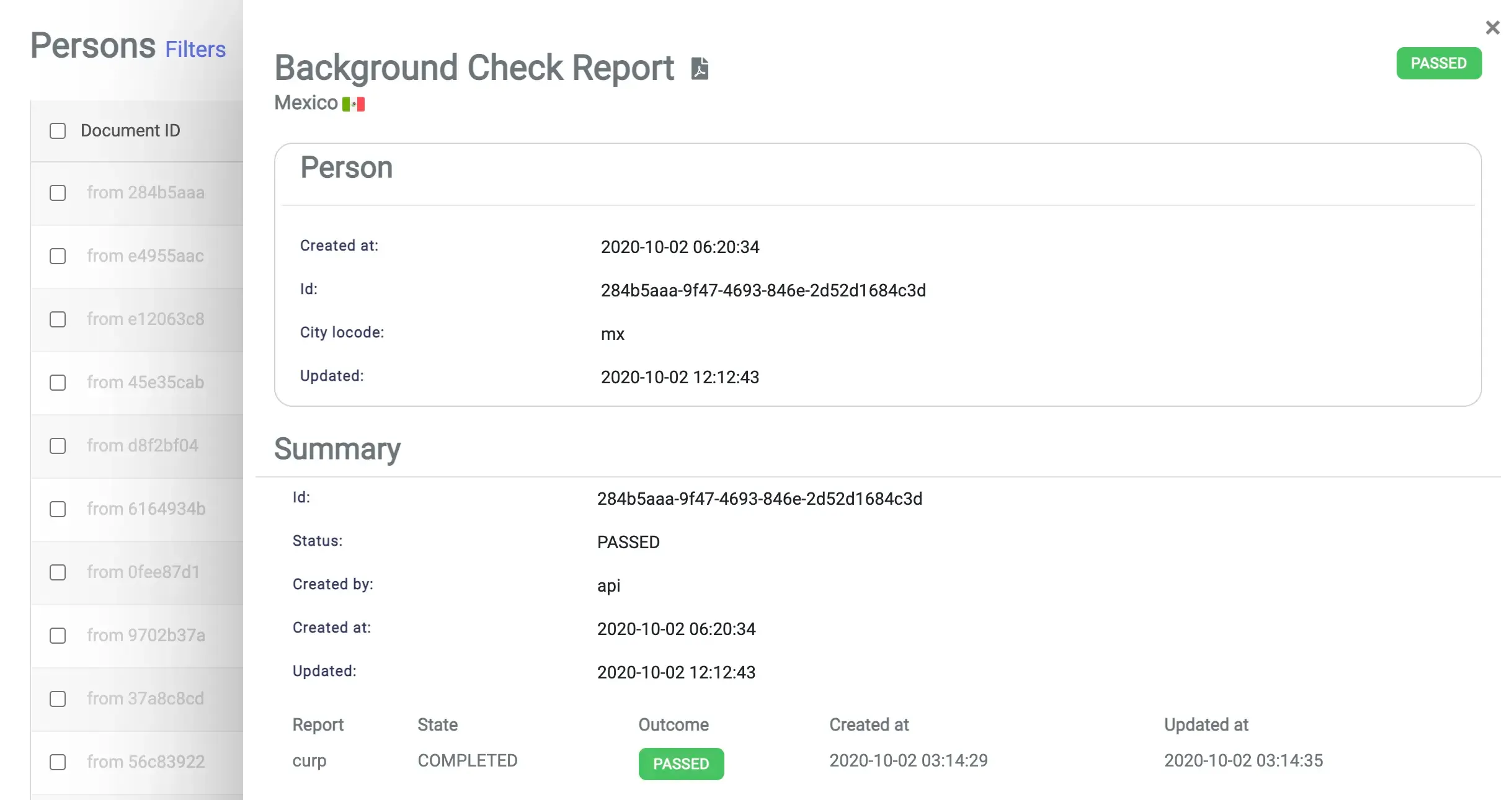
Dashboard: Running a Basic Background Check in Mexico
This article will describe how to run a Basic Background Check for Mexico persons at Emptor’s Dashboard.
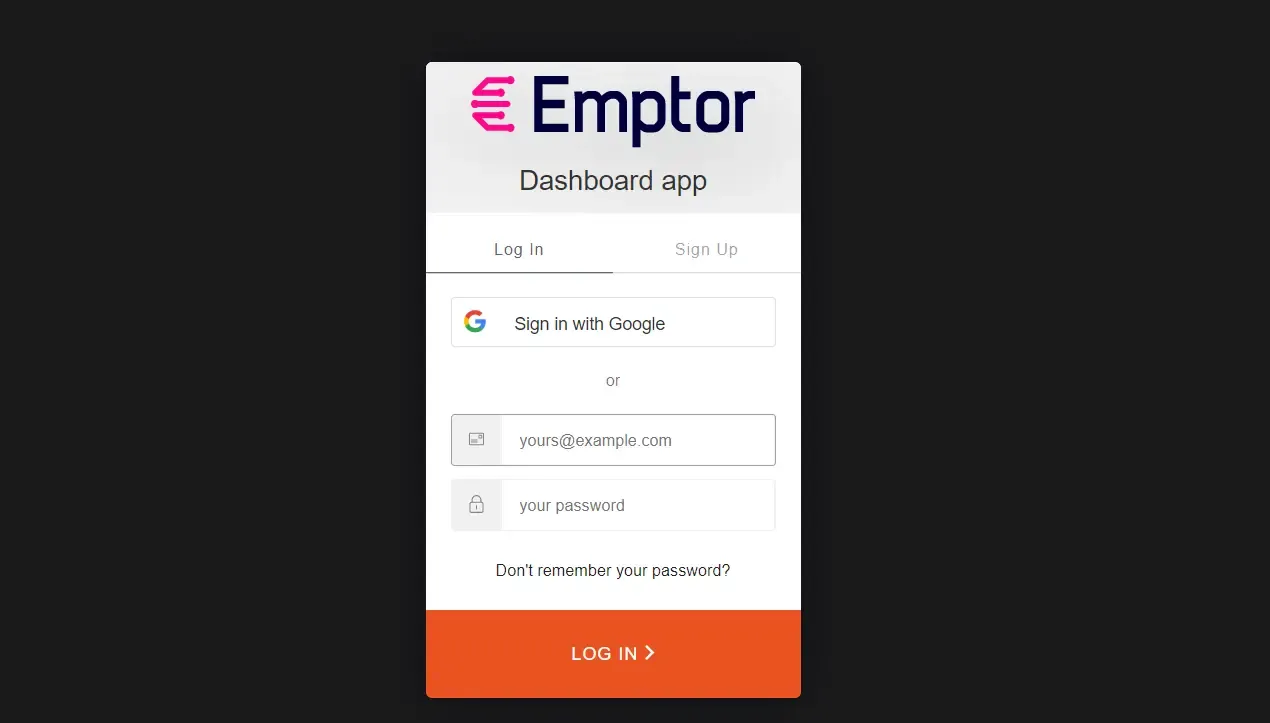
Login to Emptor’s Dashboard
Section titled “Login to Emptor’s Dashboard”Using your credentials or your Google account, login to Emptor’s Dashboard
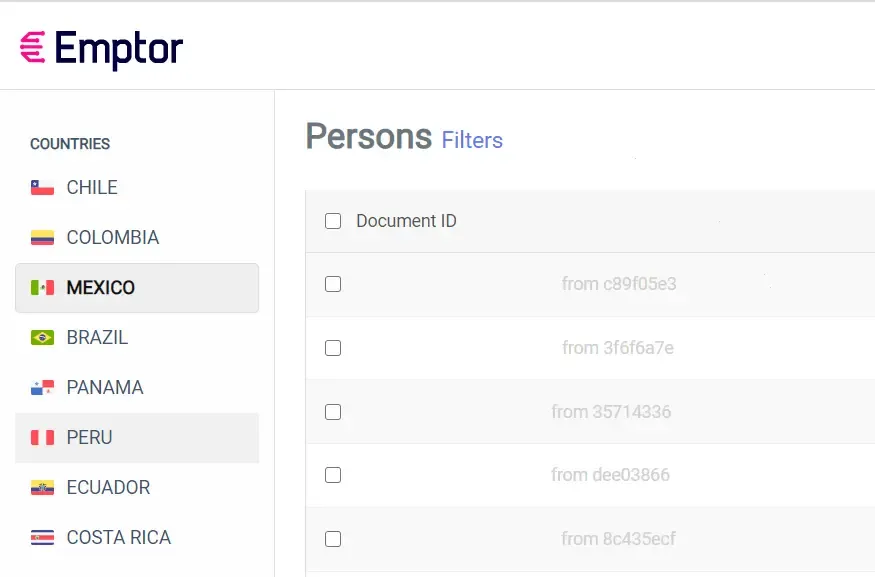
Choose Mexico in the sidebar menu
Section titled “Choose Mexico in the sidebar menu”If you have multiple countries in your usage plan, you will need to choose Mexico in the sidebar menu:
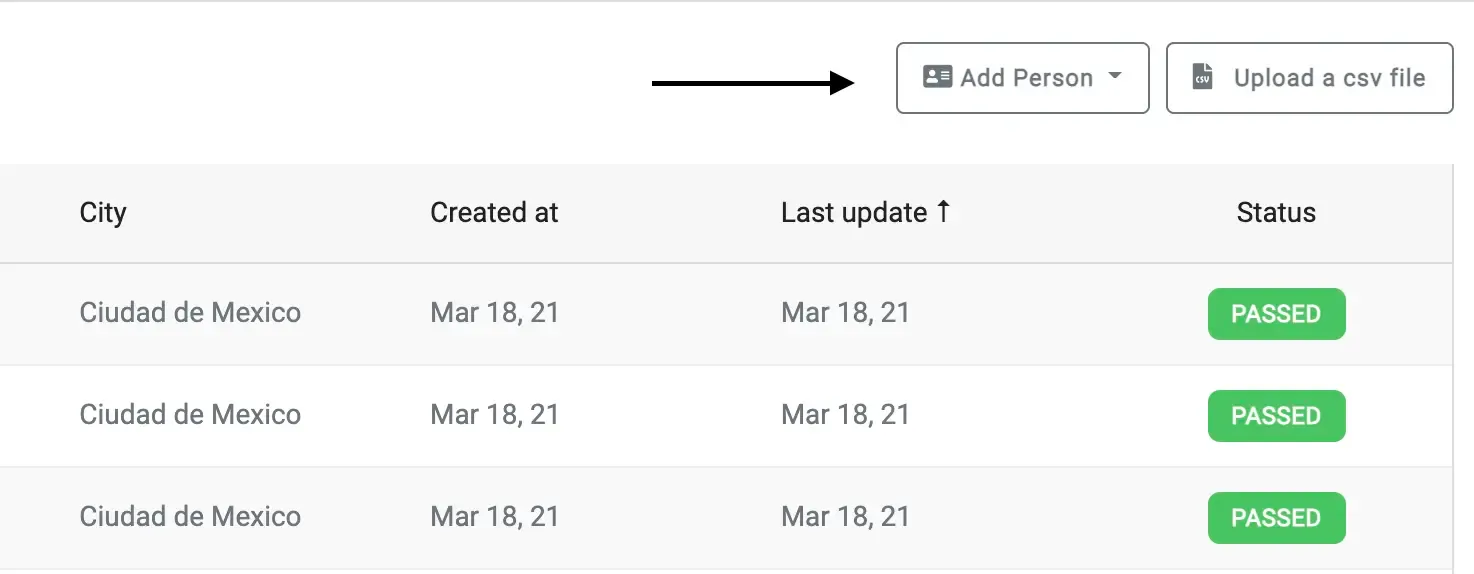
Open the ‘Add Person’ form
Section titled “Open the ‘Add Person’ form”Go to the Add Person in order to open the form to submit a new person to a Background Check:
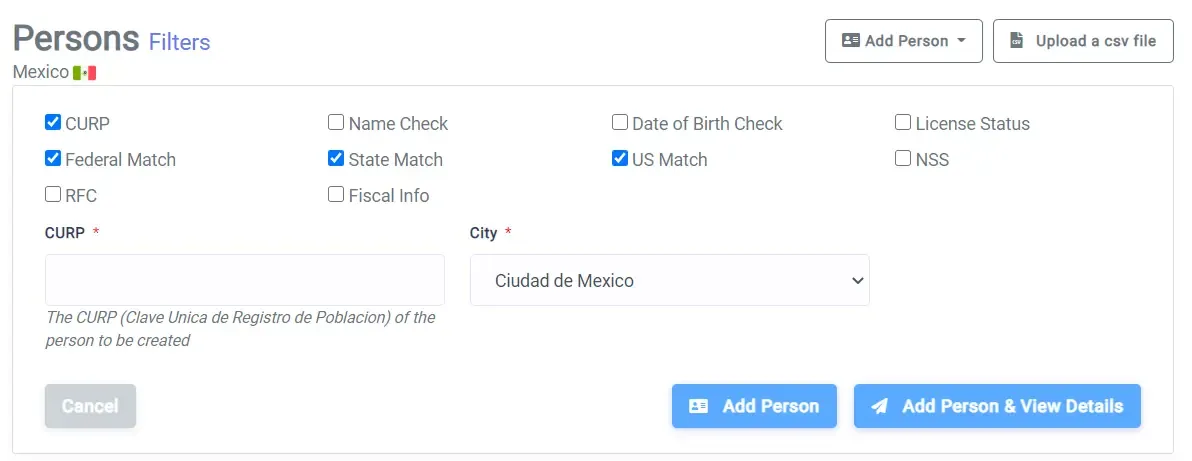
Enable the reports required for a basic Background Check
Section titled “Enable the reports required for a basic Background Check”In the Add Person form, enable the reports:
- CURP
- Federal Match
- State Match
- US Match
Add the CURP
Section titled “Add the CURP”Now, add the person’s CURP to the form (City is an optional field: you can leave it to the default option - City of Mexico):
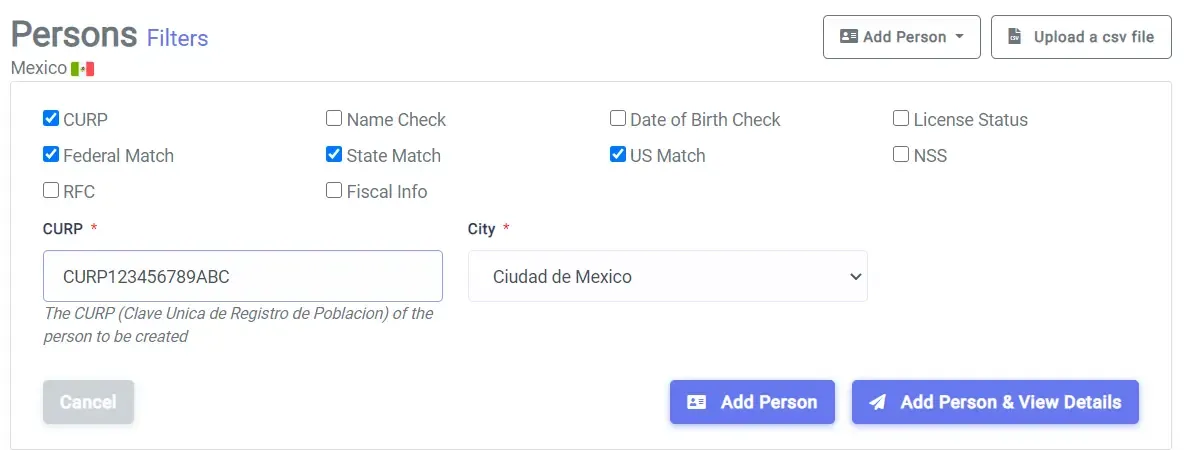
Add Person and View Details
Section titled “Add Person and View Details”Now, you can click Add Person & View Details to see the results for the Background Check as they are completed loading automatically on your screen: